
Start locally, then follow the workflow you need
Docker Compose is the shortest supported path. It builds the React workspace, Go service, and Ankara datasets into one local application. Source development remains available for RF-model and interface work.
Get the complete source and data
The Ankara building file is approximately 111 MB and is managed by Git LFS. A normal Git clone without LFS can leave a tiny pointer file in its place, which prevents the backend from becoming ready.
Recommended: clone with Git LFS
Use this path for Docker, local development, updates, and access to the complete planning dataset.
git lfs install
git clone https://github.com/Berk-Unsal/atom.git
cd atom
git lfs pull
Install Git LFS first from git-lfs.com if the command is unavailable.
Secondary: repository ZIP
A ZIP is convenient for reading the source, but GitHub archives can omit LFS object contents. Verify the building file before attempting to run A.T.O.M.
data-pipeline/ankara_buildings.geojsonshould be roughly 111 MB.- It must begin with GeoJSON content, not
version https://git-lfs.github.com/spec/v1. - Clone with Git LFS if either check fails.
Run the production-style container
This path serves the built frontend and API from port 8080. The first build downloads Go and npm dependencies; later builds reuse Docker layers when the inputs have not changed.
1. Build and start
docker compose up --build -d atomRun from the repository root, then open http://localhost:8080.
2. Verify readiness
curl http://localhost:8080/readyz
docker compose logs -f atom
/readyz returns 200 only after buildings, towers, and the frontend bundle are available.
Stop the application
docker compose downUpdate an existing clone
git pull --ff-only
git lfs pull
docker compose up --build -d atom/healthz confirms that the process is running. /readyz confirms that the runtime data and frontend are loaded and the instance can serve planning requests.
Run the frontend and backend separately
Use two terminals for local development. The Vite server proxies API traffic to the Go backend, so the browser stays on port 5173 while requests are executed on port 8080.
Terminal 1: Go API
Requires Go 1.26.5 and the LFS-managed data files.
cd backend-go
go mod download
go run .
API and production static host: http://localhost:8080
Terminal 2: React workspace
Requires Node.js 24 or newer; Node 24 LTS is recommended.
cd frontend-react
npm ci
npm run dev
Development workspace: http://localhost:5173
RF analysis and Ankara data run locally. The Leaflet basemap still requests OpenStreetMap tiles unless you configure a separate local tile source.
Add the optional 5G Core Lab adapter
The compose overlay starts the Core Lab adapter on its private service network and connects the main application to it. The adapter runs as a non-root, read-only service, provides a deterministic communication-path overlay by default, and can probe configured Open5GS status or metrics endpoints. It does not bundle a full Open5GS deployment.
export CORE_LAB_API_KEY="$(openssl rand -hex 32)"
docker compose -f docker-compose.yml -f docker-compose.core-lab.yml \
--profile core-lab up --build| Path | Meaning in A.T.O.M | Availability |
|---|---|---|
| Xn-C / Xn-U | Direct control and user-plane coordination between eligible neighboring gNBs. | Selected 5G cells within neighbor criteria. |
| N2 through AMF | Control-plane fallback when direct Xn is unavailable or degraded. | Shown by Core Lab scenarios. |
| N3 through UPF | User-plane session path between the gNB and UPF. | Tracked separately from Xn-C health. |
The Core tool is marked not applicable in 4G LTE and 6G research mode. A.T.O.M does not reuse 5GC labels for LTE/EPC behavior.
Guided first-use workflows
The map is the workspace. The command bar holds the active context and RF run action; the rail opens one focused tool at a time. Start with Setup, then move only to the analysis needed for the current question.
Import examples/ankara-sample.atom-project.json from the project menu for a settings-first baseline, then select local cells and rerun before interpreting results.
Plan one sector
Open Setup, select Single mode and a network technology, then choose a tower on the map.
Open Propagation and set ray count, radius, azimuth, and beam width.
Select Run Sector in the command bar. Inspect rays and gaps from the map or Results tool.
Evaluate a cell cluster
Switch Setup to Network mode and select two to six towers. Numbered map badges preserve cluster order.
Use Evaluate Network in the command bar, or Optimize Network from Propagation.
Open Results for score, demand reach, overlap, and optimization deltas. Per-cell rays render sequentially.
Analyze radio quality
Select at least two cells. Interference is not available for the 6G research mode.
Open Interference and choose bandwidth, load, reuse, noise figure, and sample spacing.
Analyze, switch between SINR, RSRP, and RSRQ, then select a sample to see its serving and interfering cells.
Exercise 5G paths
Run the Core Lab compose overlay and select 5G Network mode with at least two cells.
Open 5G Core and activate Core Lab to load functions, sessions, events, and communication paths.
Run Xn degraded or unavailable scenarios and observe the N2 fallback while N3 session state remains distinct.
Save and compare scenarios
Use the project selector in the command bar and save a scenario after each meaningful run.
Open Results and Compare, then switch the map between A and B while reviewing KPI deltas.
Export the versioned .atom-project.json file to preserve exact inputs, metadata, summaries, and recent layers.
Recommend and validate
Draw an area for a 4G/5G network plan, then open Results and Candidates to rank known site records.
Apply an option as a new scenario, evaluate it, and run interference before considering it preferred.
Import RSRP CSV data in Data, inspect residuals, and review holdout error before applying any global bias correction.
Orient yourself in the focused workspace
Every capability remains available, but the interface reveals one task at a time so the map stays primary.
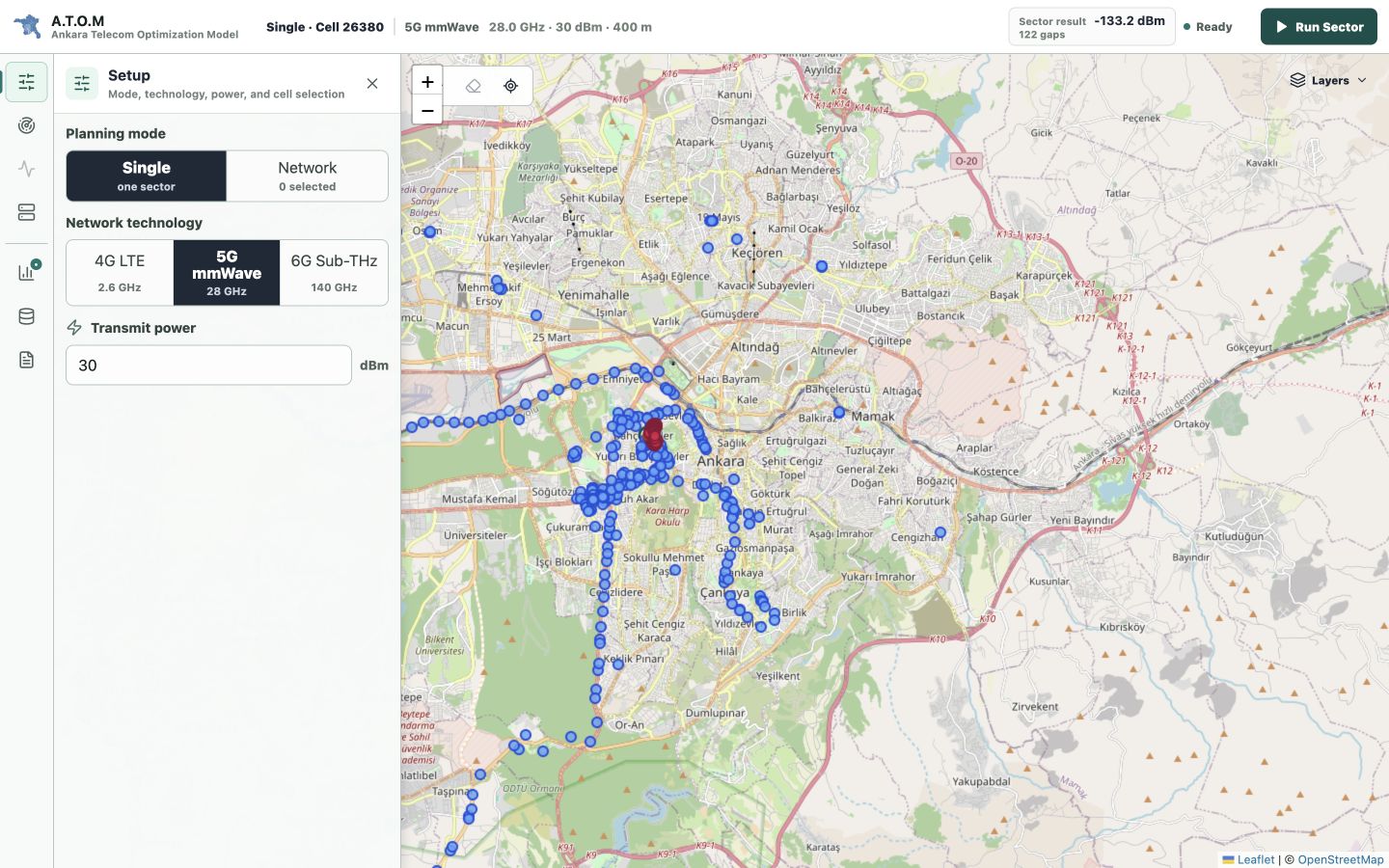
| Surface | Use it for | Operational detail |
|---|---|---|
| Command bar | Current mode, cell context, plan summary, run state, and the primary RF action. | The result summary opens the relevant Results view. |
| Tool rail | Setup, Propagation, Interference, 5G Core, Results, Data, and Report. | Click the active icon, Close, or press Escape to collapse the drawer. |
| Map toolbar | Draw, Clear, Fit, and layer visibility. | Metric controls appear only while an interference surface is active. |
| Inspector | Tower, gap, path, radio sample, candidate, and measurement-residual details. | Back restores the previous tool; popups remain compact labels. |
| Data and Report | Review dataset provenance, runtime versions, validation evidence, assumptions, and exports. | Reports record active model, dataset, and calibration metadata. |
Troubleshooting
Start with docker compose logs -f atom and /readyz; they distinguish missing data from an API or browser issue.
The backend reports invalid GeoJSON or never becomes ready
Check data-pipeline/ankara_buildings.geojson. If it is a small text file containing a Git LFS pointer, run git lfs install and git lfs pull, then rebuild the container.
Port 8080 or 5173 is already in use
Stop the process or container using the port. For Docker, change the host side of the mapping in docker-compose.yml, for example 8081:8080, and open the new host port.
/healthz works but /readyz returns 503
The process is alive but a required runtime dependency is missing. Review the readiness JSON and logs for manifest/hash validation, building data, tower data, or the compiled frontend. Confirm Git LFS completed and rebuild after frontend changes.
Docker exits or becomes slow during RF analysis
Allocate at least 2 CPU cores and about 1 GB of memory to the main app. Allow more headroom when using the Core Lab profile or running repeated six-cell analyses.
The API returns 429: RF analysis capacity is busy
A.T.O.M admits two RF jobs by default to protect the host. Let the active run finish and retry after the response's Retry-After interval. Avoid launching optimization, interference, and repeated sector runs in parallel.
The map is blank while controls and results still work
The default OpenStreetMap tile layer needs network access. RF computation can still be local; confirm tile requests are not blocked, or configure a separate local tile service.
SINR samples show no signal or approximately 0 dB
No signal means no selected cell contributes at that point under the configured radius and beam geometry. Around 0 dB is expected where a serving cell and a co-channel interferer arrive at similar power; inspect the sample's serving and strongest-interferer fields.
Go deeper
Use the architecture guide for system behavior and the model references before interpreting planning results as field measurements.